Steal with Spider Arms Controls Guide
Practical PC, mobile, and console guidance for climb, steal, and Shop — honest where exact keybinds are unpublished.
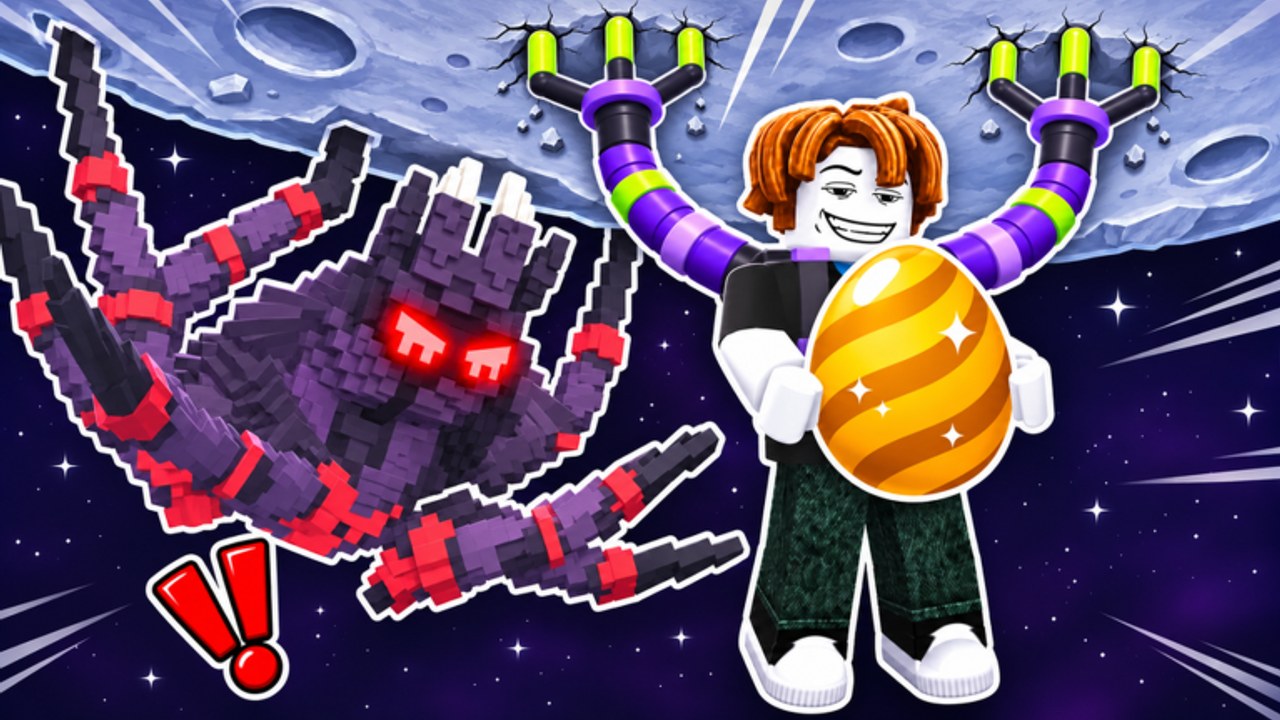
Steal with Spider Arms runs on Roblox across PC, mobile, tablet, and console. Exact keybinds can differ by platform, Roblox client version, and accessibility settings, and Myth Records does not always publish a full public control card. This guide stays honest about that gap and focuses on what each action should do, how to find binds in Roblox settings, and practical habits that keep climbs and steals reliable.
Use this page beside Getting Started, How to Steal Eggs, and How to Train. Good inputs make every other guide easier.
Core actions you must map
Regardless of device, confirm you can perform these actions without hunting the keyboard mid-chase:
- Move — Walk and sprint toward nests and safe zones.
- Camera — Orbit so the exit path stays visible while you approach a sleeping creature.
- Jump / climb start — Begin vertical movement into spider-arm climbs.
- Spider arms climb / attach — The signature movement for walls and shortcuts during escapes.
- Interact / steal — Grab an egg when in range.
- UI open — Shop (codes, arms, stomps, trainer upgrades), Index, and reward panels.
- Place / process — Plant eggs, load the egg machine, smash junk, equip pets.
If any of those feels missing, stop grinding and fix controls first. A single unbound interact key costs more eggs than a slow pet.
PC expectations
On keyboard and mouse, Roblox defaults usually cover WASD movement, Shift sprint (when enabled), Space jump, and mouse camera. Interact is commonly E or a proximity prompt click, but always verify in your client.
PC checklist:
- Open Roblox Settings → Keyboard & Mouse (wording varies) and note Move, Jump, and Interact.
- Confirm you can click proximity prompts on eggs and machines if key interact fails.
- Keep the cursor free enough to hit Shop on the left without spinning the camera into the floor.
- Lower camera sensitivity if climbs overshoot; raise it slightly if you cannot track a chase.
- Fullscreen helps; overlapping browser overlays steal clicks during trainer sessions.
During steals, pre-position the camera so the safe-zone direction is already framed before you grab. Most PC deaths in this genre are camera mistakes, not movement speed.
Mobile and tablet expectations
Touch controls use virtual joysticks and on-screen buttons. Steal with Spider Arms is fully playable on mobile, but dense UI means fingers can block Shop or prompts.
Mobile checklist:
- Enable the joystick layout you actually hit with your thumb; experiment once in a quiet base area.
- Practice a climb empty-handed before a weighted escape.
- Tap interact prompts deliberately; panicked multi-taps can cancel or mis-target.
- Rotate the camera with a free thumb so the exit stays on screen.
- After a steal, wait until you are safe before opening Shop or Index — menus mid-chase are how mobile runs die.
- If auto-jump or shift-lock style options exist in your Roblox version, test them in base before a nest attempt.
When the punching trainer feels awkward on touch, shorten sets and focus on accurate taps rather than speed. Strength still rises; mis-taps just frustrate you.
Console expectations
Controller players should expect stick movement, camera on the right stick, and face-button jump/interact patterns familiar from other Roblox experiences. Because console UI focus can lag, give Shop navigation extra patience.
Console checklist:
- Confirm which face button triggers proximity prompts in your Roblox console build.
- Use the stick for small camera corrections during climbs instead of large flicks.
- Open Shop only in safe zones; losing focus on a nest prompt while in a menu is common.
- If a bind conflicts with Roblox system shortcuts, remap in console Roblox settings where available.
Shop, codes, and UI navigation
Codes require the Shop button on the left side of the screen. Scroll to the Enter code box and redeem after the tutorial. That path is the same idea on every device; only the pointer method changes (mouse, finger, or controller focus).
UI tips:
- Finish the tutorial before blaming a broken code box — redemption unlocks afterward. Details live on Codes.
- Claim offline cash, Index rewards, daily gifts, and the group chest from their buttons when they light up; do not hunt them mid-chase.
- Equip spider arms, stomps, and pets from inventory/equip UI before you leave base.
- If a menu covers the joystick on mobile, close it fully before climbing.
Climb-specific practical guidance
Spider-arm climbing is the skill ceiling for escapes. Without official bind docs, use this practice method:
- In a safe area, approach a practice wall and trigger climb repeatedly until the input feels consistent.
- Add a jump-into-climb rhythm if your device needs it.
- Repeat while holding a light egg after one successful mid steal.
- Only then attempt glowing giant routes from How to Steal Eggs.
If climbs fail randomly, check ping, camera angle, and whether you are pressing interact instead of the climb control. Rebind conflicts after Roblox updates are common — revisit settings after any client patch.
Accessibility and quality-of-life
- Lower graphics if frame drops desync climb attaches.
- Increase UI scale on small phones so Shop and code boxes are tappable.
- Use headphones for chase audio cues when visual sleep states are hard to read.
- Remap if you have motor or layout needs; Roblox settings are the source of truth when this wiki cannot list a single universal key.
Troubleshooting table
- Cannot redeem codes — Tutorial incomplete, wrong Shop tab, or typo; see Codes.
- Cannot grab egg — Out of range, wrong prompt, or menu open.
- Climb will not start — Wrong bind, bad angle, or lag; practice on a safe wall.
- Trainer does nothing — Click/tap not registering; UI covered; upgrade not purchased.
- Camera wild on PC — Sensitivity too high; mouse acceleration; overlapping windows.
Practice routine (10 minutes)
- Two minutes mapping Move, Jump, Interact, Camera on your device.
- Three minutes empty climbs on a safe wall.
- Two minutes opening Shop, scrolling to codes, closing cleanly.
- Three minutes a short steal route with camera pre-aimed at safety.
Controls mastery is quiet progression. Once inputs are boring, return to Getting Started for the loop, How to Train for Strength, and Pets and Eggs for hatch decisions. The thieves who look lucky are usually the ones who never fight their own buttons.
Frequently Asked Questions
Quick answers to the most common questions.
What are the exact keybinds for Steal with Spider Arms?
The game does not always publish a full public control card, and binds vary by Roblox client. Check Roblox settings for Move, Jump, and Interact, then practice climb and steal prompts in a safe area.
Can I play Steal with Spider Arms on mobile?
Yes. Use touch joysticks carefully, keep the exit path on camera, and avoid opening Shop mid-chase. Practice empty climbs before heavy egg escapes.
Where is the code redemption UI?
Open Shop on the left side of the screen, scroll to the Enter code box, and redeem after finishing the tutorial. Full steps are on the Codes page.
Why do my spider-arm climbs fail?
Usually bad camera angle, lag, or an unbound/mis-pressed climb input. Practice on a safe wall, then retry weighted escapes after inputs feel consistent.
Should I change settings before stealing?
Yes. Confirm interact and camera feel right in base, then run one empty route to a nest. Fixing controls early prevents wasted chases.